First, I have a project over at Cuttlebug Challenge today for the Creatively Yours Spotlight Sunday feature. I hope you click on the picture below and go check it out in its entirety! I used the new Victoria embossing folder as part of our month-long Countdown to CHA event!

My second thing to share today is of course Banana Split Sunday! There is a new release coming up on Wednesday, July 15th. This week is a sketch challenge; you should play along as you could win your choice of one of the new sets.
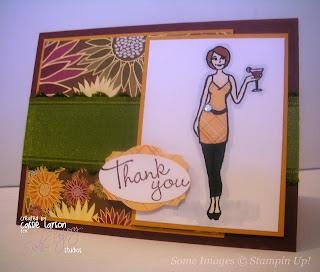
This month we are introducing a new illustrator for 2RedBananas: Mindy Baxter. I used her Princess themed set for my card today. Image was colored with my prismas and baby oil and the dress was paper pieced. Lots of sparkly gems as every princess should have!
 Stop by the 2RedBananas blog to see the sketch! Be sure to link up your creation in Mr Linky for your chance to win one of the new sets. The rest of the Banana Bunch is sharing sneak peeks all week long so visit their blogs too!


 I knew that I wanted to try to create some sort of "home" image but wasn't sure what to do exactly. As I began sketching out a design, I remembered all those flower pot cards I've seen over the last few weeks and I thought it would be really neat to have a home designed with a pull feature and so my {Welcome} Home Pocket Card was born! Since my measurements are completely different from what I saw for the flower pot card, I am sharing the entire process with you!


 Another view of the home with the sentiment showing! I think this would be great to welcome someone to the neighborhood or to even leave out for a guest to welcome them to your home.


 This is part of the
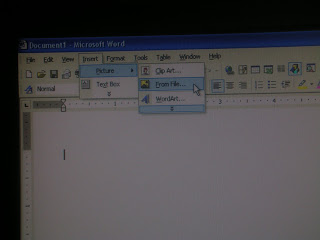 Find your image on your computer. Again, keep them all in one file in your documents for quick and easy access!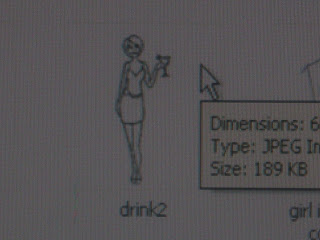
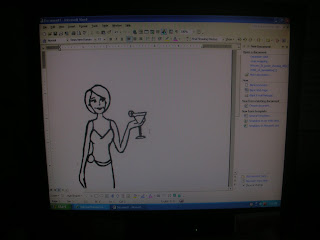 3. One of the great things about digi-stamps is that they can be sized to any project that you have! After you have inserted your image, you will want to re-size it. You can do this by clicking on the image and using the "drag" method. Or you can do it by inputting the size that you want. To do this, select the image by clicking on it once. Then RIGHT-CLICK and select FORMAT PICTURE.
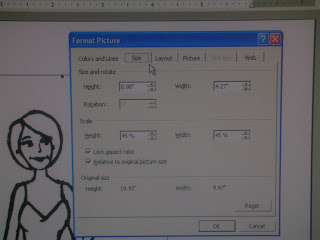 Go to the SIZE tab and change the height or the width to the size that you want. You only change one as they are somehow "connected together" so that they both change proportionally and your image doesn't distort.
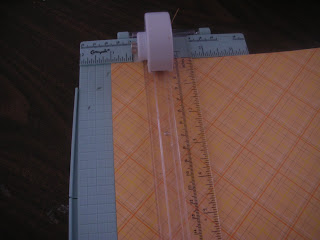
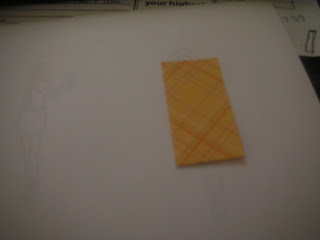
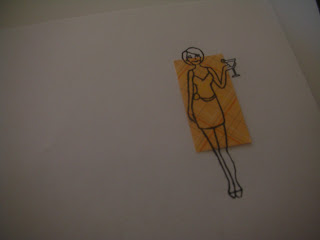
  Then I cut the pattern paper that I want to use to size. I only need enough for her top.